

How to Speed Up Your BigCommerce Store: Performance Optimization Guide

A faster BigCommerce storefront is a revenue issue, not a cosmetic one. Speed affects load time, customer experience, SEO, and conversions, which is why performance work belongs on the same priority list as merchandising and checkout improvements. BigCommerce already delivers static assets through Akamai’s CDN, so this guide does not waste time on platform myths or server tweaks you cannot access on a SaaS stack. The real leverage sits in the storefront layer you control: oversized images, app-driven script bloat, redirect chains, and inefficient theme code.
This BigCommerce speed optimization guide focuses on measurable fixes and a clear order of operations. You will start by measuring page speed and Core Web Vitals so you can see where Largest Contentful Paint, layout shifts, and script execution are breaking the experience. Then you will prioritize the highest-impact work first: reduce page weight, audit third-party apps and requests, clean up redirects, and tighten Stencil theme output. BigCommerce support specifically points merchants toward reducing requests by limiting added site components and working with the theme, and that is exactly where this article stays grounded. The goal is simple: diagnose what is slowing the store, fix what you can actually influence, and validate the result with metrics instead of guesses.
Why BigCommerce store speed matters, and what you can actually control
BigCommerce store speed matters because shoppers feel it before they measure it. The practical signals are Core Web Vitals: Largest Contentful Paint shows how quickly the main content appears, Interaction to Next Paint shows how fast the page responds after a click or tap, and Cumulative Layout Shift shows whether the layout jumps while loading. Those metrics sit next to plain page load time, because a page can be technically loaded and still feel slow. Speed also influences search visibility, but it does not guarantee rankings or sales. The only honest way to judge progress is through measured improvements in usability, load behavior, and Core Web Vitals.
What BigCommerce controls, and what you control
On BigCommerce, the platform handles the core hosting environment and serves static assets through Akamai’s CDN. That SaaS model removes a lot of infrastructure work, but it does not make the storefront fast by default. Merchants still control the biggest front-end bottlenecks: Stencil theme code, template complexity, image sizing and compression, render-blocking assets, redirects, and the number of third-party apps or scripts attached to the page. That is where BigCommerce speed optimization usually wins or loses. If a category page loads a heavy hero image, multiple app widgets, and extra JavaScript from the theme, Core Web Vitals will reflect that immediately. This guide focuses on those merchant-controlled levers, then prioritizes fixes by likely impact so you can diagnose the real bottlenecks instead of chasing low-value tweaks.
Measure first: how to diagnose what is actually slowing down your BigCommerce store
BigCommerce support and related guidance keep pointing to the same levers: theme output, fewer added components, image compression, redirects, and Core Web Vitals. BigCommerce also serves static assets through Akamai’s CDN, so diagnosis should start with storefront code and media payloads, not guesses about hosting. That is the right baseline for BigCommerce performance work.
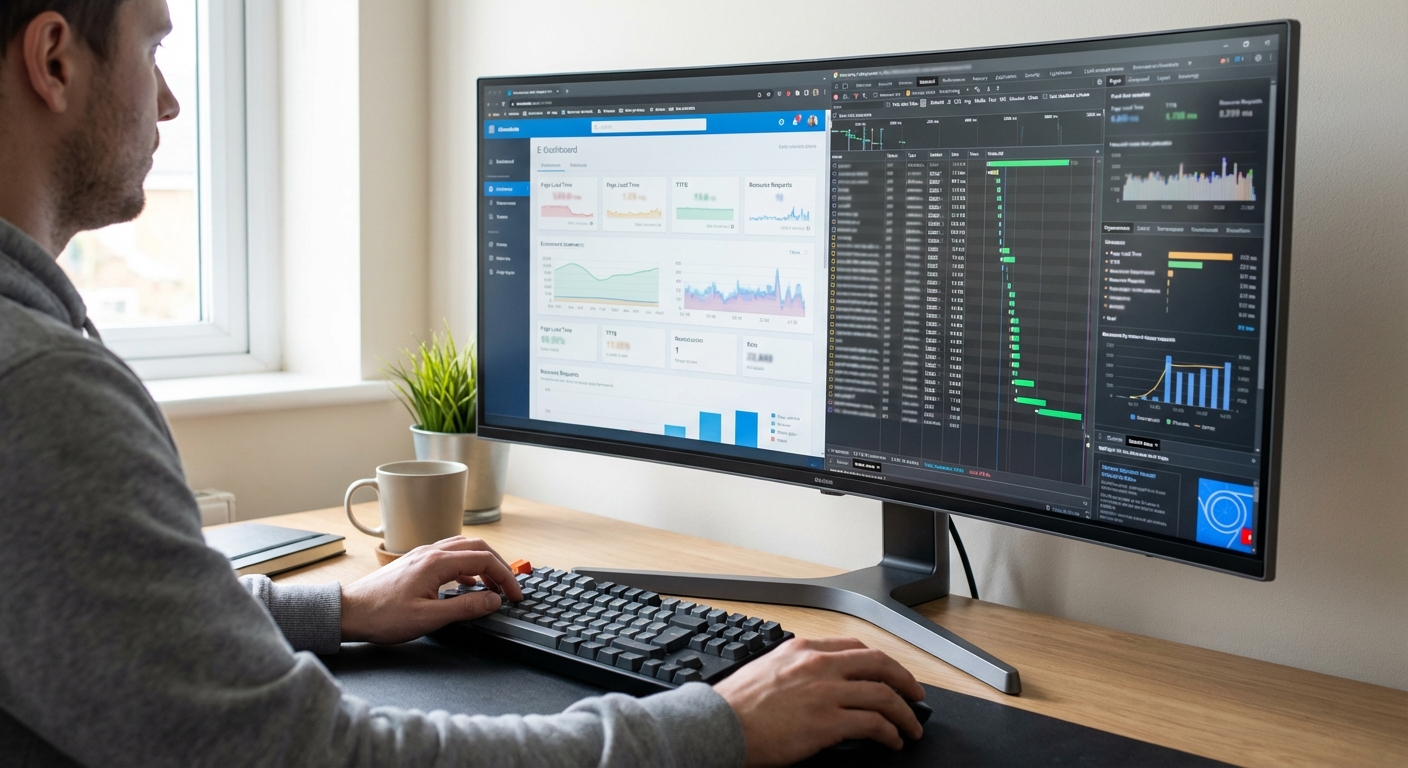
- Run baseline tests. Use PageSpeed Insights first because it combines lab data with real-user reporting where available. Then run Lighthouse in an incognito window for repeatable tests, Chrome DevTools for Network and Performance traces, and WebPageTest for waterfalls and filmstrips. Record mobile results for LCP, INP, CLS, total bytes, request count, and main-thread blocking time.
- Test templates separately. One homepage URL is not enough. Measure a representative homepage, category page, product page, cart, and any checkout-adjacent page you control, such as shipping or login flows. On BigCommerce, Stencil themes and apps often load different assets on different templates. Faceted navigation can slow category pages, while galleries, reviews, and recommendation widgets usually make product pages heavier.
- Interpret the trace, not the score. A weak synthetic score does not tell you what to fix. Waterfalls show render-blocking CSS and JavaScript, slow third-party tags, and requests that delay above-the-fold content. DevTools exposes long tasks that lock the main thread and unused JavaScript shipped by themes or apps. Heavy image payloads usually hurt LCP. Injected app content and unsized media often cause layout shift. Treat Core Web Vitals as symptoms, then trace each symptom to the blocking resource or script.
Prioritize the slowest high-value template first. If product pages are failing BigCommerce page speed checks because of media and scripts, fix that before chasing a better homepage number. Measuring load time by template gives you a repeatable process and a cleaner path to meaningful gains.
Cut page weight first: optimize images, media, and fonts for the fastest wins
If you want to speed up your BigCommerce store quickly, cut page weight before you touch anything exotic. BigCommerce guidance consistently centers performance work on images, themes, Core Web Vitals, and load-time checks, and support specifically calls out image compression as a primary fix. In practice, that means opening PageSpeed Insights on your home page, category page, and top product template, then identifying the LCP element. On most stores, it is the hero banner, a featured product image, or a promotional block sitting above the fold.
Fix oversized visuals before anything else
BigCommerce already delivers static assets through Akamai’s CDN, but a CDN does not rescue oversized source files. A 2500 pixel homepage banner is still heavy on mobile, and a product gallery with full-size images loaded up front still drags BigCommerce site speed. Resize images to the largest display size your Stencil theme actually uses, serve responsive variants so phones do not download desktop assets, and convert eligible images to modern formats such as WebP or AVIF. Keep the first screen lean: one strong hero, not a slider, stacked promos, and autoplay video competing for bandwidth.

Below the fold, lazy loading is the clean win. Product gallery thumbnails, secondary lifestyle images, embedded video, and lower homepage promos should wait until the shopper scrolls. Do not lazy-load the primary above-the-fold image if it is your LCP element. That delays the exact asset you need to render first.
Trim font and promo bloat inside the theme
BigCommerce support also recommends reducing requests by limiting added site components and working with the theme. That hits two common problems: too many homepage promos and inefficient font loading. In Stencil, every extra promotional block, app widget, badge, and custom font adds requests and rendering work. Keep to one or two font families, load only the weights you use, and preload only the font needed for above-the-fold text. Then re-test. If LCP drops after shrinking the hero asset and removing competing media, you fixed the highest-impact problem first, which is exactly how BigCommerce speed optimization should be prioritized.
Audit apps, tags, and third-party scripts before they overwhelm the storefront
Yes. BigCommerce speed optimization is rarely blocked by the platform alone. It is usually slowed by what gets layered onto the storefront: apps, tracking pixels, chat, reviews, personalization, A/B testing, and social embeds. BigCommerce guidance consistently treats reduced third-party apps, fewer added site components, theme work, and Core Web Vitals as primary speed levers because every extra script can add network requests, more code to parse, and more work on the main thread.
If your homepage looks loaded but clicks feel delayed, you are seeing the real cost of JavaScript bloat. Third-party scripts often execute after the first paint, so Lighthouse can show a tolerable load while Interaction to Next Paint still suffers. In Chrome DevTools, the Network waterfall exposes who is adding requests and delaying completion. The Performance panel shows long tasks, script evaluation, and event-handler work that make filtering, add-to-cart, and variant changes feel sluggish.
Run a script audit like a profit audit
- Inventory every storefront script from Script Manager, theme files, GTM, and app installs. Group them by function: measurement, merchandising, support, social, and experimentation.
- Measure key templates separately: home, category, product, cart. A reviews widget on product pages and a chat tool on every page are not equal problems.
- Classify each script as revenue-critical, compliance-critical, or optional. Analytics, consent, and checkout-critical tools stay. Auto-playing social feeds and duplicate heatmaps usually do not.
- Remove anything redundant. Stores often run multiple trackers, overlapping review tools, or retired campaign tags that still execute on every page.
- Defer non-critical scripts until after initial render, or load them on interaction. Chat can wait for user intent. Social embeds can be replaced with static thumbnails.
- Conditionally load page-specific tools only where they earn their cost. Product recommendations belong on product pages, not the entire Stencil theme.
This is the standard to hold every add-on against: fewer requests, less main-thread work, and better customer experience. If a script does not improve compliance, measurement, or revenue enough to justify its performance cost, remove it. On BigCommerce, disciplined script governance beats piling more code onto the storefront every time.

Optimize your Stencil theme, template logic, and page structure
On BigCommerce, the biggest sustainable gains usually come from theme work, not hosting tweaks. BigCommerce support centers performance work on themes and Core Web Vitals, recommends limiting added site components, and calls out render blocking assets as a direct problem. In practice, a heavy Stencil theme slows pages because every extra partial, widget region, slider, trust badge, and inline script increases template weight before the browser can render meaningful content. Audit shared partials first. Header, footer, announcement bars, promo blocks, and product cards are reused everywhere, so one bloated component can damage every template.
If a component exists twice for desktop and mobile, merge it into one responsive version. If a partial pulls data or markup that only appears after interaction, move it behind a click or load it later. This is where theme optimization pays off: fewer repeated nodes, fewer requests, and less JavaScript execution across the entire storefront.
Fix the templates that multiply your mistakes
Collection pages usually expose the worst front end inefficiencies because one oversized product card gets repeated dozens of times. A card stuffed with swatches, quick view, countdown timers, inventory messages, review widgets, multiple badges, and hidden duplicate markup creates a large DOM fast. That hurts LCP and pushes interactive states later. Keep category cards focused on the elements that drive browsing: image, title, price, and one clear action. Everything else needs to justify its cost across every card on the page.
Product pages fail differently. Variant scripts, image galleries, recommendation carousels, tabs, financing widgets, and sticky add to cart bars often initialize at once. That inflates JavaScript work and causes layout shifts when late loading blocks appear without reserved space. Reserve dimensions for galleries, banners, and injected widgets, and initialize only the code tied to visible components. On BigCommerce, this matters more than server tuning because the page is assembled through the theme layer the shopper actually downloads.
Measure changes on BigCommerce templates, not just sitewide averages
BigCommerce already serves static assets through Akamai’s CDN, so the practical win is reducing what the CDN has to deliver and what the browser has to execute. Measure category pages and product pages separately in PageSpeed Insights and Chrome DevTools. Watch LCP, CLS, request count, transferred JavaScript, and long tasks before and after each change. Effective BigCommerce speed optimization shows up as smaller templates, fewer third party requests, and a page that becomes usable faster, not just a better lab score.
Prioritize fixes: what to do first on homepage, category pages, and product pages
Start where slow pages cost the most. BigCommerce support ties site speed to better browsing behavior and highlights three recurring fixes: remove render-blocking assets, compress images, and reduce server response time. Use those findings with your own template-level traffic, revenue, and Core Web Vitals data. If category and product templates carry most sessions, product page optimization and category cleanup beat homepage polishing because the gain reaches more shoppers.
Use a two-pass plan
- Fix merchant-controlled waste first: oversized images, bloated apps, unnecessary redirects, and extra page components. BigCommerce guidance repeatedly points to images, apps, and request reduction as practical levers. These are the fastest store optimization wins and often improve LCP without touching code.
- Edit Stencil theme files second. This is where the work shifts from merchant-friendly cleanup to developer time: template logic, reusable modules, and script loading behavior. Keep that effort on category and product templates with the worst measured bottlenecks and the strongest revenue exposure.
- Escalate persistent front-end issues last. BigCommerce already serves static assets through Akamai’s CDN, so stubborn eCommerce speed problems usually come from custom functionality or third-party scripts you control. Bring in specialist support after the quick wins are done, not before.
Measure the results, set performance guardrails, and know when to bring in a developer
- Baseline one product page, one category page, and the homepage, then retest those exact templates after every change on the same device profile, network setting, and test tool.
- Compare lab results with real-user data. Lab tests in PageSpeed Insights or Lighthouse show whether a specific edit improved LCP, CLS, total requests, or script execution. Real-user Core Web Vitals show whether shoppers actually felt the improvement across devices and connection quality.
- Log every app install, image batch, redirect change, and theme deploy. If performance drops after a release, you need a clear rollback point.
That discipline matters because BigCommerce speed optimization usually moves through a small set of repeat offenders: images, themes, apps, redirects, and extra site components. BigCommerce guidance consistently centers performance work on Core Web Vitals, theme changes, and reducing unnecessary requests, so your testing should stay focused on those levers instead of vanity scoresâand know when to bring in specialized BigCommerce speed optimization help.
Set guardrails before the store slows down again
Use simple rules: no new app without measuring its request cost, no theme update without template retesting, no oversized image uploads, and no added script unless it supports revenue or operations. BigCommerce already handles core platform delivery and serves static assets through Akamai’s CDN, so merchants should concentrate on the front end they control: theme code, third-party scripts, media, and page composition.
Know when a developer is justified
A BigCommerce developer earns the cost when the bottleneck is structural, not editorial. That includes theme refactoring, script loading strategy, component cleanup, template performance auditing, and BigCommerce custom development to remove duplicated logic or bloated storefront behavior. A developer will not replace the SaaS infrastructure, but they can make your Stencil theme leaner, reduce render blocking, and stop regressions from piling up. The right standard is simple: if a change affects Core Web Vitals, conversions, or release reliability, measure it and treat speed as an ongoing operating rule.
A faster BigCommerce store comes from disciplined prioritization
Meaningful speed gains come from discipline, not from chasing every possible tweak. BigCommerce support ties site speed to better browsing behavior and business outcomes, and the work consistently centers on images, themes, Core Web Vitals, and the extra requests created by added site components. That gives you a clear rule: diagnose first, then attack the few issues that move the metrics.
- Audit your home page, category pages, product pages, and cart before changing anything. Record Core Web Vitals, load time, and page weight so every fix has a baseline and every result can be verified.
- Prioritize the highest-impact fixes first: compress and properly size images, remove render-blocking assets, reduce app load, and clean up redirects or other front-end overhead that adds delay without adding revenue.
- Monitor after every release. BigCommerce serves static assets through Akamai’s CDN, but new scripts, theme edits, and integrations can still create regressions, so retesting has to be routine.
That is BigCommerce speed optimization in practice: measured decisions, focused execution, and ongoing validation. If theme or script complexity exceeds your team’s technical depth, bring in specialized help before incremental fixes turn into recurring performance debt.