

eCommerce Phishing Emails: How to Spot Fake Platform Notifications
Fake platform notifications work because they look like the messages merchants already expect all day: billing warnings, app alerts, order issues, password resets, security checks, and account access notices. For a store owner, marketer, or admin, those messages are tied directly to revenue and uptime, so urgency feels normal, not suspicious. In this context, eCommerce phishing emails do not need elaborate tricks. They only need to imitate routine operational email closely enough to push a fast click before someone verifies the message independently.
That is why phishing emails targeting online stores often impersonate platform support and use high-pressure claims about suspension, review, compliance, or account problems. Phishing commonly arrives through email and text, and visual branding is not a dependable trust signal because attackers can copy logos, layouts, and tone. A fake platform notification might claim a store was flagged for review over compliance or theme issues, or send a shutdown-style warning that demands immediate action.
This guide stays practical. It will show you how to spot the red flags in platform-style messages, verify a notice without clicking the email, and respond correctly if you already clicked, opened an attachment, or entered credentials. The goal is not perfect protection. The goal is a repeatable process that helps you recognize spoofed notices and confirm what is real before you act.
The platform emails scammers most often imitate
The platform notices scammers imitate are the ones that threaten immediate disruption: “Account suspended,” “Billing failed,” “Policy violation detected,” “Password reset requested,” “App deactivated,” “Domain or SSL problem,” “Chargeback filed,” “Payout on hold,” and fake invoices marked overdue. Those messages work because phishing leans on urgency, threats, and account-hold language to force a fast decision. A message can look like a real Shopify or other platform alert and still be fake, because attackers routinely build login and support pages that mimic legitimate sites to steal credentials or other sensitive data, as seen in an impersonation case targeting merchants with fake platform emails.
The pressure changes by scenario, but the goal stays consistent. An account suspended email pushes you to “restore access” before sales stop. A billing warning pressures you to “update payment” before checkout breaks. Policy, app, domain, SSL, chargeback, payout, and invoice lures all use the same playbook: click now, sign in now, fix this now. In merchant phishing emails, the strongest tells are usually mechanical: the real sender address does not match the brand, the message comes from a public email provider, the greeting is generic, the spelling is sloppy, or the hovered link points somewhere the sender domain does not.
- Verify directly by ignoring the email link, opening the platform from a saved bookmark or typed URL, and checking whether the same alert appears inside the admin.
- Inspect the message by checking the real sender address, the tone, the branding, and any lookalike differences in links or domains.
- Contain exposure if you clicked a link or opened a file: disconnect from the internet immediately and run full antivirus and anti-malware scans. A phishing click can expose device information, redirect you to a fake site, or install malware.
If an email demands urgent action but the issue does not exist in your admin, treat it as one of the more common eCommerce scam emails and delete it.
The one-minute checklist: red flags to inspect before you do anything
Most fake platform alerts fail a one-minute inspection. If you need a practical way to learn how to spot phishing emails, start with the cues attackers repeat: generic greetings, billing-problem claims, urgent account threats, spelling mistakes, and links that do not match what the message suggests. In eCommerce phishing emails, those lures often mention account suspension, failed payouts, password resets, app approvals, or policy violations because merchants are trained to react fast.
- Check the display name against the actual sender address. “Shopify Support” or “Billing Team” means nothing if the sender address comes from an unrelated domain, a misspelled domain, or a free email service.
- Inspect the reply-to field if your mail app shows it. A message sent from one domain but routing replies somewhere else is a strong warning sign.
- Hover over every link without clicking. If the previewed destination does not match the sender, the brand, or the action described in the email, treat it as malicious.
- Reject shortened links or vague buttons like “Review Now” when the destination is hidden. Legitimate platform notices do not need to obscure where they send you.
- Notice the greeting. “Dear merchant,” “Account owner,” or no name at all is one of the clearest phishing email red flags.
- Avoid unexpected attachments, especially for billing issues or account reviews. Platform notifications normally direct you to your admin area, not to open files.
- Scan the formatting. Awkward spacing, broken logos, odd capitalization, and grammar problems signal a rushed impersonation attempt.
- Refuse any login page or form embedded inside the email. Do not sign in there. Open the platform directly in your browser and check the dashboard message center yourself.
- Pause when the email demands immediate action. “Verify in 10 minutes” or “your store will be closed today” is pressure, not proof.
If you already clicked, stop interacting with the email. If you opened an attachment, disconnect that device from sensitive accounts and alert your IT or security contact. If you entered credentials, change the password from the official platform site, rotate any reused passwords, and review account security settings immediately. Speed matters most after data entry, not before verification.
How to verify a platform email safely without clicking the message
Treat every suspension, billing, password reset, or policy alert as untrusted until you confirm it somewhere else. Visual branding proves nothing, the display name can hide the real sender, and phishing relies on urgency, threats, generic greetings, and fake account-hold claims to force quick clicks as part of broader ecommerce cybersecurity threats.
- Open the platform from a saved bookmark or a typed URL, never from the message. This is the safest way to verify platform notifications because it removes the email from the workflow entirely.
- Check the admin dashboard for the same notice. Review billing, security, account status, app alerts, and recent login activity. If a spoofed platform email claims your store is suspended but the admin shows no warning, treat the email as hostile.
- Inspect the sender details without interacting. Look at the real address, not the display name, and watch for domain impersonation, misspellings, or subtle lookalike differences.
- Confirm with your team before acting. In shared admin environments, ask whether anyone requested a password reset, changed billing, installed an app, or opened a support ticket. Unknown requests are escalation events.
- Contact support only through the platform site or help center you reach independently. Do not reply to the email and do not use its links, attachments, or phone numbers.
Decision rule: ignore and report the message if the dashboard is clean and your team cannot match it to a real action. Escalate immediately if the admin shows a real security or billing issue, or if anyone clicked. A phishing click can expose device information or install malware, so disconnect from the internet and run antivirus and anti-malware scans.
BigCommerce- and Shopify-looking emails: what to check first
A Shopify or BigCommerce logo proves nothing. The real sender address is the first check because display names are easy to spoof. Shopify specifically warns that messages sent from Gmail, Yahoo, Apple Mail, or Hotmail are not legitimate Shopify emails. A fake Shopify email can still look polished, and BigCommerce advises merchants to ask whether the message was expected and whether the tone, branding, or formatting looks off, especially in light of security upgrades that affect your store theme. Treat suspension threats, billing problem claims, generic greetings, spelling slips, and pressure to act immediately as strong phishing signals.
Verify the claim without using the email
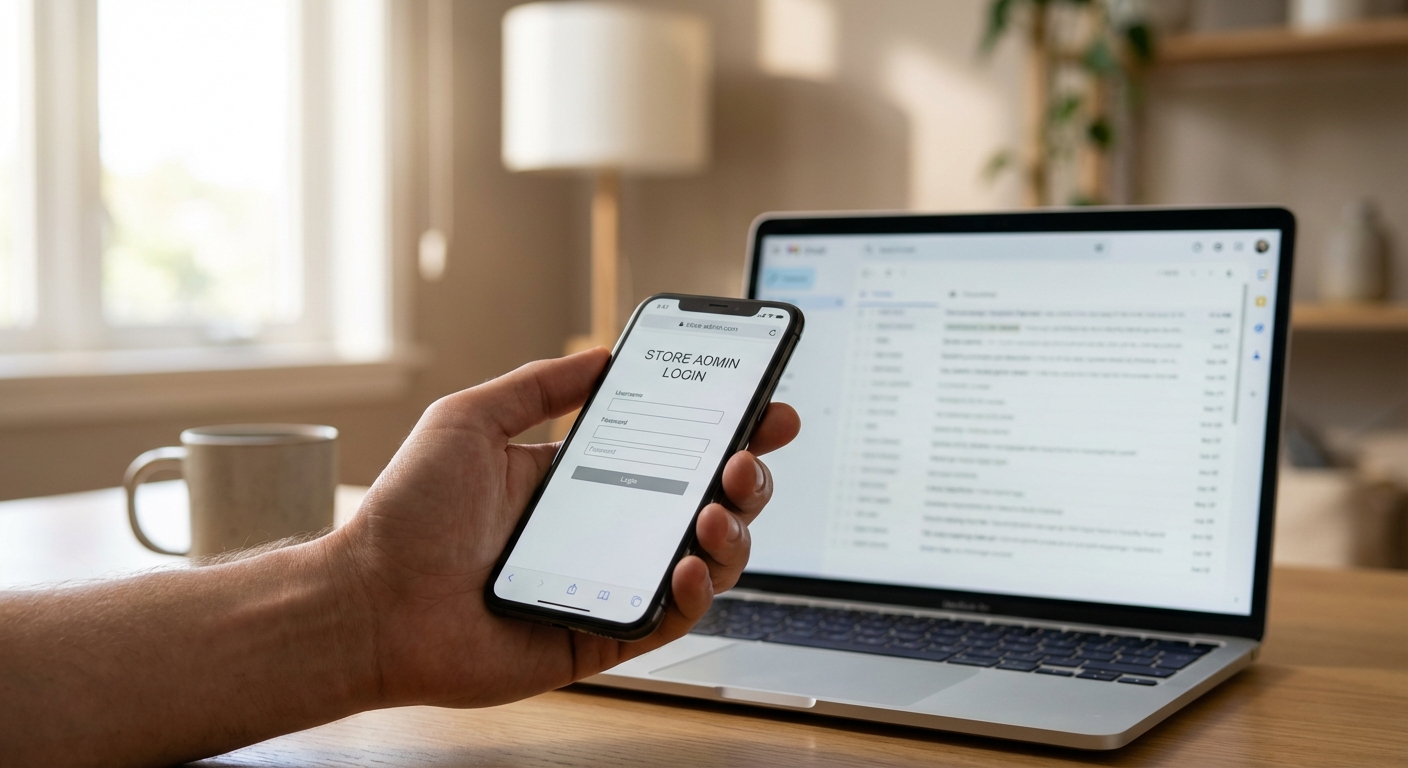
- Close the message. Phishing often uses fake login or support pages that imitate the platform to steal credentials. Open a fresh browser window and sign in through the platform URL you normally use.
- Check your admin notifications and recent account alerts. If the email describes a real account issue, that same notice should appear inside the dashboard.
- Compare the email against the platform’s documented communication patterns, not just its visuals. Details can change over time, so use official help documentation as a reference point, not the email’s branding as proof.
If you clicked a link
If you clicked, assume exposure and contain it immediately. A phishing page can collect device information, redirect you to a credential trap, or install malware. Disconnect from the internet at once, then run a full antivirus and anti-malware scan before you return to the account from a trusted session. That is the safest response to eCommerce phishing emails that imitate platform notifications.
What to do if you opened the email, clicked a link, or entered your password
With eCommerce phishing emails, speed matters, but panic makes mistakes. These messages usually rely on urgency, threats, and lookalike details in the sender address, links, or spelling. Work from a trusted device, type the platform URL directly into your browser, and verify everything inside the real admin.
- Opened only: If you only viewed the message, do not reply, click, or download anything. Log in directly to your store and confirm whether the alert, invoice, or password reset request appears in the dashboard. Then run a full antivirus and anti-malware scan.
- Clicked a link: If you need a rule for what to do if you clicked a phishing email, isolate first. Disconnect the device from the internet immediately. A phishing click can expose device information, send you to a fake sign-in page, or trigger malware. Scan the device before using it again.
- Entered credentials: From a clean device, sign in through the official platform login, change the password, and revoke all active sessions. Reset multi-factor authentication, review admin users, remove any unfamiliar staff accounts, and inspect installed apps, private apps, and API access for anything you did not authorize.
- Approved MFA: Treat that as an active account takeover. Reset the password again, regenerate backup codes, review billing contacts, payout or banking details, and shipping or notification emails, then check for new rules or changes inside the admin.
- Downloaded an attachment: Keep the device offline, scan it, and escalate fast if the file was opened or executed. If your store relies on a custom domain, also review domain registrar access and DNS records for unauthorized changes. Contact official platform support through the vendor’s real help center and ask for an account security review.
When an email still looks convincing: advanced checks for domains and headers
Some eCommerce phishing emails survive the obvious tests because the branding, tone, and timing look legitimate. The stronger check is the real sender address, not the display name. A message can say “Shopify Support” or “BigCommerce Billing” in the visible name while the actual sending domain uses a lookalike spelling, an extra word, or a completely unrelated address. That is domain impersonation in practice: the message borrows trust from the platform name while the underlying sender address tells a different story, much like phishing scams that rely on sender deception.

If you want extra confirmation, compare the From address, the Reply-To address, and the links inside the message. A fake platform notice often pushes replies or clicks to a different destination than the one implied by the sender. The same principle applies to Return-Path in full headers: if that routing detail points somewhere unrelated, the email deserves more scrutiny. Header review is useful when a message passes visual inspection but still asks for a login, billing update, password reset, or policy action.
Can phishing emails spoof a real eCommerce platform domain? They can certainly look close enough to fool a busy merchant. Treat advanced checks as confirmation, not permission. The safest move is still to ignore the email link, open the platform from your saved URL, and confirm the alert inside the admin dashboard.
Stay skeptical, verify outside the inbox
Most eCommerce phishing emails fall apart under a basic check. Branding is not proof, because fake login and support pages can closely imitate real platforms. Trust the real sender address, not the display name. Treat urgency, threats, generic greetings, billing problems, account holds, spelling errors, and mismatched link destinations as warning signs. A Shopify-looking message can still be fake, and a message claiming to be from Shopify but sent from a public email provider is not legitimate. BigCommerce guidance is just as practical: if the message was unexpected or the tone and branding feel off, stop there.
- Inspect. Check the sender, hover over links, and look for subtle lookalike domains, grammar issues, and pressure tactics.
- Pause. Urgency is a phishing tool. Suspension threats and forced password resets are designed to make you click before you think.
- Verify. Do not use the email. Open your bookmark, sign in platform directly, and confirm the alert inside the admin dashboard or through official support.
- Act. If you clicked, disconnect from the internet and run a full antivirus and anti-malware scan. If you entered credentials or opened an attachment, reset access from a clean device and contact the platform through official channels.
The habit is simple: never trust the inbox to prove the message is real. Trust your own login path.